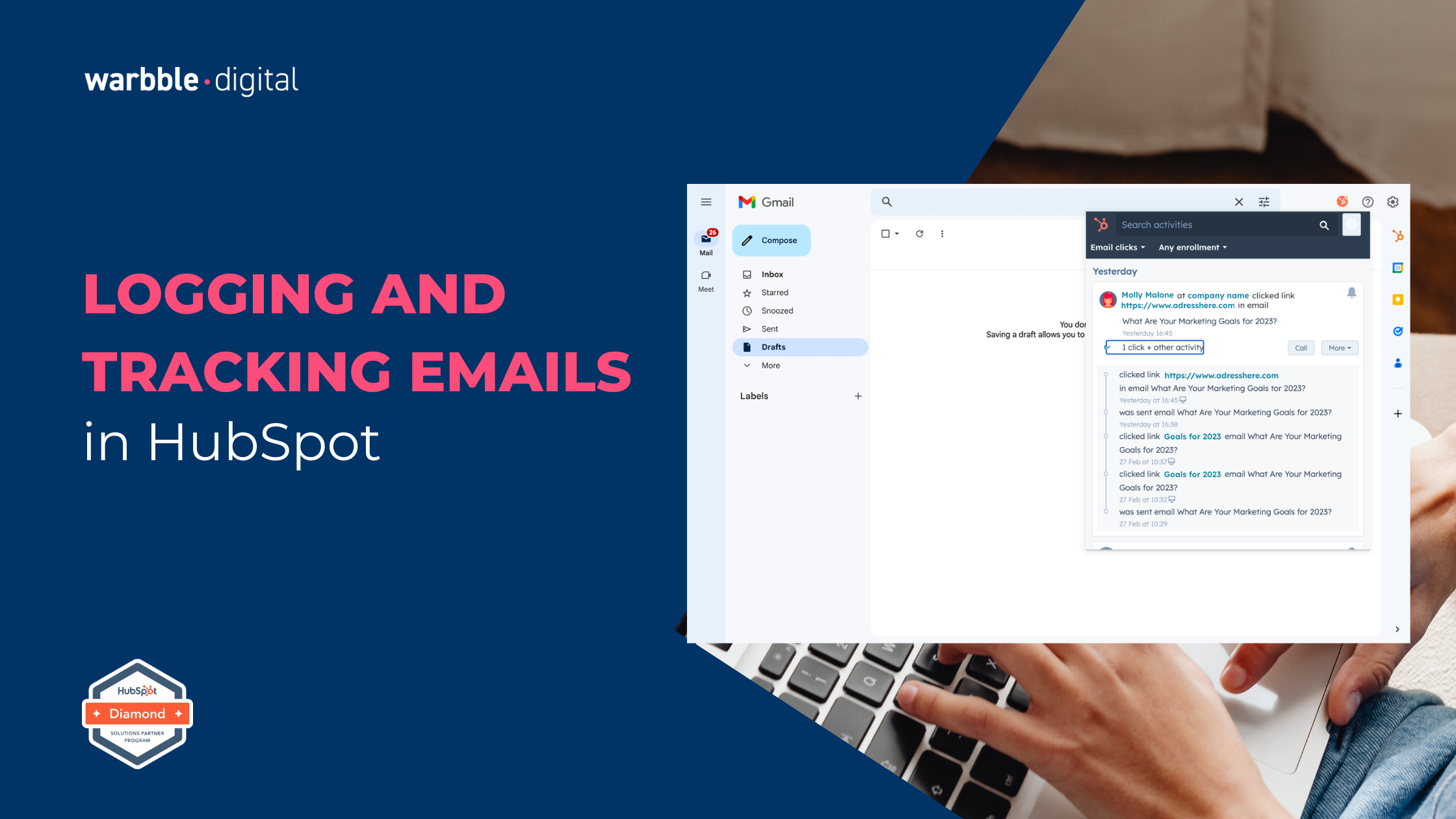
Connecting your email account to HubSpot is one of the first things every new user needs to do - and one of the most common sources of friction during onboarding. For Gmail users, the process is usually straightforward. For organisations running Microsoft 365 or Outlook, it sometimes requires something most people don't expect: approval from a Microsoft administrator.
This guide walks you through the full connection process for both email providers, explains exactly why Microsoft admin consent is required and what it means, and gives you the steps to get it resolved quickly - whether you are the admin or need to escalate to someone who is.
To connect your email to HubSpot, go to Settings - General - Email Integrations and follow the OAuth authorisation flow for Gmail or Microsoft 365. If you are on Microsoft 365 and see a message saying admin approval is required, this is because your organisation's IT policy restricts third-party app access - your Microsoft tenant admin needs to grant consent for HubSpot in Azure Active Directory before you can complete the connection.
How to Connect Your Email to HubSpot: Step by Step.
In your HubSpot portal, click the Settings icon (the cog) in the top navigation. From the left-hand menu, navigate to General, then select the Email Integrations tab. This is where you manage your personal email connection - separate from any marketing email sending domains.
You will see options to connect Gmail, Office 365, or another email provider via IMAP. Select the provider that matches your work email.
Email integration here refers to your personal inbox connection for logging and tracking sales emails. It is separate from your marketing email sending domain (configured under Settings - Marketing - Email - Sending Domains). The two setups are independent of each other.
Click Connect your inbox and select your provider. HubSpot will redirect you to your email provider's authorisation screen - either Google's OAuth consent screen or Microsoft's permission request page. You will be asked to sign in and grant HubSpot permission to access your inbox.
For Gmail and Google Workspace accounts, this step usually completes without issue. Google's OAuth flow is designed to allow individual users to grant third-party application access, so no administrator intervention is required in most cases.
If your Google Workspace admin has restricted third-party app access, you may also see a block screen. Ask your Google admin to approve HubSpot (App ID: 503782644386) in Google Admin Console under Security - API Controls - App Access Control.
If your organisation uses Microsoft 365 (formerly Office 365) or Outlook with a corporate domain, you may encounter a screen that says "Need admin approval" during the OAuth flow. This is not an error - it is Microsoft's built-in security feature called Admin Consent.
By default, many Microsoft 365 tenants are configured to require tenant-wide administrator approval before any third-party application (including HubSpot) can access organisational data via the Microsoft Graph API. This policy exists to protect the organisation from unauthorised app access and is controlled by the tenant's Global Administrator or Application Administrator in Azure Active Directory.
Your IT team may have enabled "User consent settings" restrictions in Azure AD, which blocks users from independently granting third-party apps access to their Microsoft accounts. This is a deliberate security policy decision - not a HubSpot limitation - and it requires an admin to resolve.
There are two ways to resolve the Microsoft admin approval requirement, depending on whether you are the Microsoft 365 Global Administrator yourself or need to involve your IT team.
Path A - If You Are the Microsoft 365 Admin: When you encounter the admin approval screen, sign in with your Global Administrator account. You will see an option to "Consent on behalf of your organisation". Tick that checkbox and click Accept. This grants HubSpot tenant-wide consent and allows all users in your organisation to complete the HubSpot email connection without further approval requests.
Path B - If You Need to Involve Your IT Team: On the admin approval screen, there is a link to "Send a request to your admin". Click this to generate an automatic approval request email to your Microsoft 365 Global Administrator. Share this guide with them and ask them to approve HubSpot (Microsoft App ID: d74b6f46-be0e-4059-a7ca-57a3e50e9e44) in Azure Active Directory under Enterprise Applications - Admin Consent Requests.
HubSpot requires the following Microsoft Graph API permissions: Mail.ReadWrite, Mail.Send, offline_access, openid, profile, User.Read. These are standard permissions for CRM email integration and do not grant HubSpot access to any data beyond the individual user's inbox.
Once authorisation is granted, HubSpot will confirm the connection and return you to the Email Integrations settings page. You will see your connected inbox listed with a green status indicator.
At this point, configure your logging preferences: decide whether to log emails automatically or on a per-email basis, set up your email signature in HubSpot, and install the HubSpot Sales Extension for Gmail or the HubSpot Sales Add-in for Outlook so you can access HubSpot tools directly from your inbox.
Enable automatic email logging for your domain so all outbound emails to contacts in HubSpot are captured without manual action. You can always exclude specific addresses (e.g. internal team emails) by adding them to your Never Log list under Email Integrations.
The Microsoft Admin Approval Process at a Glance.
Connected but Something Isn't Working?
- Your inbox shows a green "Connected" status in HubSpot Settings
- Sent emails appear automatically on the relevant contact records
- You receive open and click notifications when contacts engage
- The HubSpot Sales Extension is installed and active in your inbox
- Your email signature in HubSpot matches your standard signature
- The "Never Log" list excludes internal team email addresses
- Emails are not logging - check your BCC address or extension is active
- Microsoft consent screen reappears - admin consent may not have been granted organisation-wide
- Tracking notifications not arriving - check HubSpot notification preferences
- Inbox shows "Disconnected" - your OAuth token may have expired, reconnect
- Emails logging to wrong contacts - check duplicate records in HubSpot
- Extension not loading - check browser permissions and extension is enabled
I had a very good experience with the team from warbble·digital for our HubSpot onboarding process. We had regular calls and updates which was really helpful and my questions were always answered. Highly recommend!
- Donaghy, K.Frequently Asked Questions.
Let's Meet for 15 Minutes.
Book a quick call and we'll determine exactly how we can help you. After the call, we'll send you a free digital strategy valued at €997 - no strings attached.
Book Your Free Call ->